


If you need a YouTube thumbnail quickly, Thumbnail Maker is the kind of app I would try before opening a full desktop design program. It is a free Art & Design app from Digital Marketing Tools, aimed at people who want a usable thumbnail without already knowing how to design. After spending time with it, my impression is simple: it is most helpful when speed and a clear starting point matter more than complete creative control.
The app has a reassuringly broad audience. Its Everyone age rating makes it approachable for families, students, casual creators, and small channel owners, while its 1M+ installs and 4.7 average from around 84K ratings suggest that it has found a practical place in many creators’ routines. That popularity does not make every design automatically great, though. The result still depends on your image choice, wording, contrast, and willingness to remove clutter.
Getting from installation to a usable thumbnail
What the first launch feels like
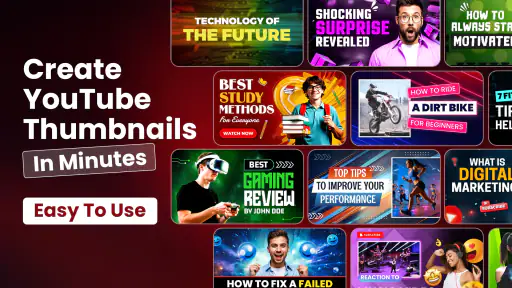
Thumbnail Maker is best understood as a focused design shortcut rather than a complete graphics studio. The store summary points directly to its purpose: creating a thumbnail for a YouTube channel without requiring design skills. That focus is useful because it keeps the task concrete. You are not starting with an empty professional canvas and wondering which of dozens of tools to learn first.
Before beginning, I recommend having three things ready: the main image you want viewers to notice, the short phrase that explains the video, and a rough idea of the mood. A cooking video, gaming upload, tutorial, and personal vlog may all need different visual treatment. The app can help you assemble the pieces, but it cannot decide what your audience should understand in the first second.
The current version is 79.0, and it runs on Android 8.0 or later. That makes it suitable for many older phones as well as newer devices. On a smaller screen, however, design work can feel cramped, especially when you are trying to judge whether text is readable at a glance. I found it more comfortable to make broad choices first and save fine adjustments for the end instead of constantly changing tiny details.
Choosing a starting point without overthinking it
First-time users often make the mistake of treating every available design choice as equally important. I get better results by deciding on the visual hierarchy before touching decorative elements. The person, product, or object should usually be the strongest visual point. The title should support it, not compete with it. A background should create separation rather than become the most memorable part of the image.
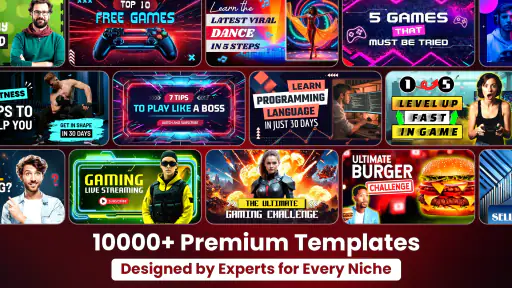
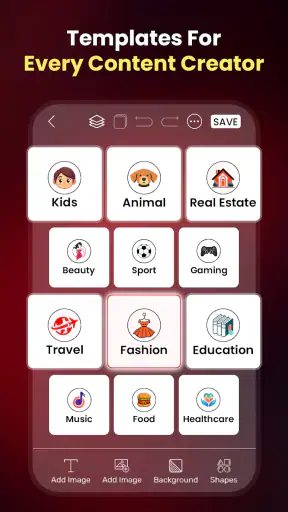
When you choose a starting design, look for one that already resembles the structure of your video. A bold arrangement may suit a reaction or challenge video, while a calmer layout may work better for a lesson or review. Changing a suitable starting point is faster than forcing an unsuitable one into shape. This is one of the app’s main advantages over beginning from a blank document in a general-purpose editor.
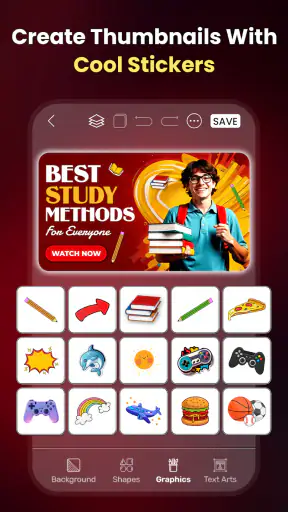
My practical advice is to avoid filling the canvas immediately. Start with one image and one short title. If the thumbnail already communicates the subject, then add only what improves recognition. Extra stickers, lines, effects, or secondary phrases can make a design feel busy on a phone screen, where viewers may see it very small beside many competing videos.
The first successful action
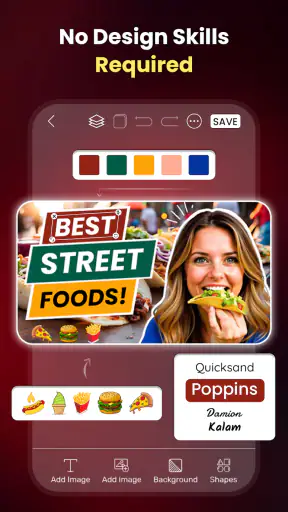
A meaningful first success is not merely opening a template. It is producing a thumbnail that still makes sense when you look at it briefly. I would begin by importing or selecting the main visual, placing it where the eye naturally lands, and then writing a title that states the benefit or tension of the video. For example, instead of repeating a long video title, use a compact promise such as a result, a question, or a strong contrast.
After that, check the lettering at a reduced viewing size. This is a more useful test than admiring the design while zoomed in. If the words disappear when the image becomes small, shorten them or increase their separation from the background. The most important test is whether the thumbnail communicates before the viewer has time to study it.
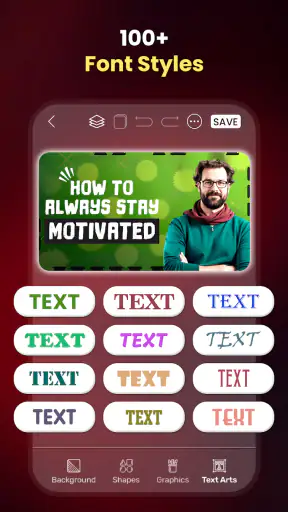
Color choices deserve more attention than beginners usually give them. Bright text on a bright photograph can vanish, even when both colors look attractive separately. A darker image area behind light lettering, or a lighter area behind dark lettering, usually creates a clearer result. If the chosen photo has detail everywhere, placing the title over the quietest part of the image can be more effective than adding more decoration.
Once the layout works, save or export the result using the app’s available workflow and inspect the final image outside the editor. This catches problems that are easy to miss while designing, such as text sitting too close to an edge or an important face being covered. I also like to compare the finished thumbnail with two or three recent thumbnails from the same channel. Consistency can make a small channel look more intentional without making every upload identical.
A realistic everyday workflow
Imagine that I have finished editing a short phone video in the evening and want to publish it before going to bed. I would open the app, choose a starting layout close to the subject, add a clear still image, and write a short phrase based on the video’s strongest moment. I would then remove anything that does not help the viewer understand the topic, check the image at a small size, and make one final contrast adjustment.
That workflow is where Thumbnail Maker makes the most sense. It turns a vague task—“I need something clickable”—into a short sequence of visible decisions. I do not have to build a design system from the ground up, and I can concentrate on the message. For a creator posting occasionally, that reduction in friction may matter more than having a huge collection of advanced tools.
Where new users can become confused
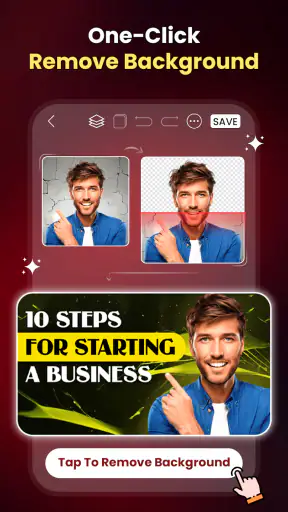
The phrase “no design skills needed” should not be read as “no decisions are needed.” A template can give you a polished starting shape, but replacing its original image or text may change the balance. A title that is too long can wrap awkwardly. A face that was central in the starting composition may become hidden after you add your own photo. If something suddenly looks wrong, check the spacing and hierarchy before assuming the app has failed.
Another common confusion is judging quality by the editor view alone. A thumbnail may look impressive when it occupies most of the phone display but become unreadable in a feed. I recommend stepping back, lowering the preview size, and asking someone nearby what they think the video is about. If they need a detailed explanation, the design probably needs a simpler message.
It is also easy to confuse visual activity with attention. A crowded thumbnail may attract the eye for a moment but communicate less clearly than a restrained one. I would rather use one strong image, a readable phrase, and a deliberate color contrast than add several effects that compete with the subject. This is especially important for educational and review channels, where trust and clarity often matter more than exaggerated decoration.
How it compares with broader design apps
Compared with a general design app, Thumbnail Maker feels more approachable for this particular job. A broad editor may offer more flexibility across posters, social posts, presentations, and branding, but that flexibility can slow down a first-time user. You may spend more time deciding on a canvas, searching for the right starting arrangement, or learning where basic controls are located.
The trade-off is that a focused thumbnail tool is not the best choice for every visual task. If you need a complete brand kit, detailed photo retouching, complex layer work, or the same design adapted across many unrelated formats, a more comprehensive editor will probably serve you better. I would also choose a desktop-oriented tool when precision typography, extensive image manipulation, or a carefully managed channel identity is central to my work.
For a beginner who mainly needs a YouTube thumbnail on a phone, the narrower purpose is a strength. For a designer who already has an established workflow, it may feel limiting. The right question is not whether it replaces every alternative, but whether it removes enough effort from this one recurring task to justify keeping it installed.
Free access and the point where payment matters
The app is free to install, which makes it easy to test without committing money first. It also includes in-app purchases ranging from $3.99 to $39.99 per item. Because of that, I would explore the free workflow before deciding whether any paid option is worthwhile. A first-time user should not assume that purchasing something is necessary to create a useful result.
My approach would be to make several thumbnails for different video subjects and see whether the available tools already fit my routine. If I only publish occasionally, the free experience may be enough. If I create content frequently and a paid item removes repeated friction, the decision becomes more practical—but I would judge it by time saved and consistency gained, not by the promise of making every thumbnail perform well.
Who will benefit most from it
I think Thumbnail Maker is a strong match for a new YouTube creator, a student preparing video assignments, a small business owner making occasional demonstrations, or anyone who needs a quick visual without learning professional design software. It is especially useful when the problem is getting started. A guided, focused tool can prevent the blank-canvas hesitation that causes many people to publish videos with no considered thumbnail at all.
It can also help creators who work away from a computer. If an idea arrives while traveling or between appointments, a phone-based workflow is more convenient than waiting until returning to a desktop. That convenience is valuable, but I would still reserve a few minutes for proofreading. A fast design with a spelling mistake or unclear title can look less trustworthy than a simpler design made carefully.
Who should choose another option
I would skip this app if my work depends on highly controlled typography, detailed compositing, professional retouching, or a large reusable brand system. Someone producing thumbnails for a team may also prefer a broader tool with a more structured collaboration and asset-management workflow. Likewise, if I already have a desktop process that delivers consistent results quickly, moving to a phone app may add steps rather than remove them.
It is also not the right answer for someone hoping the app will solve a weak video concept. A thumbnail can clarify a compelling idea, but it cannot create genuine interest where the subject, title, or audience fit is unclear. I would use it as the final communication layer for a video, not as a substitute for deciding what the video is actually offering.
Small habits that improve the finished result
One useful habit is to write the thumbnail phrase separately before entering it into the design. If the sentence is long on paper, it will almost certainly be too long on the image. Try to express one idea rather than summarize the entire video. This makes the design easier to scan and leaves more room for the main visual.
A second habit is to keep a small set of successful visual patterns for your own channel. You do not need to copy the same layout every time, but repeating a recognizable relationship between image, title, and color can help viewers identify your uploads. Thumbnail Maker is well suited to this kind of repeatable routine because you can begin from a familiar structure instead of reinventing the composition each time.
A third habit is to make a clean version before making a dramatic version. Create the simplest readable design first, then test whether an extra element genuinely improves it. This reverses the usual beginner impulse to add everything immediately. In my experience, subtraction is often the faster route to a professional-looking thumbnail.
My recommendation after using it
Thumbnail Maker earns its place as a practical starting point for mobile creators who want a clear path from idea to finished YouTube artwork. Digital Marketing Tools has kept the purpose easy to understand, and the app’s free entry point makes experimentation comfortable. Its Everyone rating also makes it approachable for a wide range of users, including younger creators working with appropriate guidance.
My recommendation is strongest for first-time users: prepare one strong image, reduce the title to its essential message, check the design at a small size, and resist adding decoration just because it is available. That process will teach you more about thumbnails than simply selecting a template and accepting it unchanged.
There are limits. A focused mobile app will not replace a full design suite for demanding professional work, and the presence of purchases means I would examine the free workflow before spending anything. Still, for a creator who wants to publish a video today and needs a thumbnail without a steep learning curve, it offers a sensible balance of speed and control. I would install it when the goal is not to become a graphic designer, but to make the next upload look deliberate, readable, and ready to share.


